Updates to the draw.io desktop app

· One min read
draw.io
draw.io Team

DESKTOP VERSIONS PRE 10.7.5 ARE STRONGLY RECOMMEND TO DOWNLOAD AND INSTALL A NEW DESKTOP BUILD {: .alert .alert-danger}

Desktop versions prior to 10.7.5 have a critical security flaw, so we’re disabling them all, sorry. To resolve, just go to the draw.io desktop project on GitHub, https://github.com/jgraph/drawio-desktop/releases, and download the latest version for your platform. Once that’s installed, you’re good to go again.

Versions of draw.io Desktop from 10.7.5 onwards run completely isolated from the internet, so the security hole can’t reappear.

Use Cloudcraft to export your AWS architecture to a .drawio diagram

· 4 min read
draw.io
draw.io Team

Using Cloudcraft, you can securely connect to cloud environments and infrastructure components via your architecture diagrams where statistics, resource information and more is updated in real time. The 3D isometric view that Cloudcraft uses is familiar to engineers and IT staff as it often matches the tools they learned on. The automatic updates driven from your company's live systems makes Cloudcraft a fantastic tool for monitoring your AWS cloud infrastructure. The statistics are also helpful to estimate costs when you want to make changes to your system.
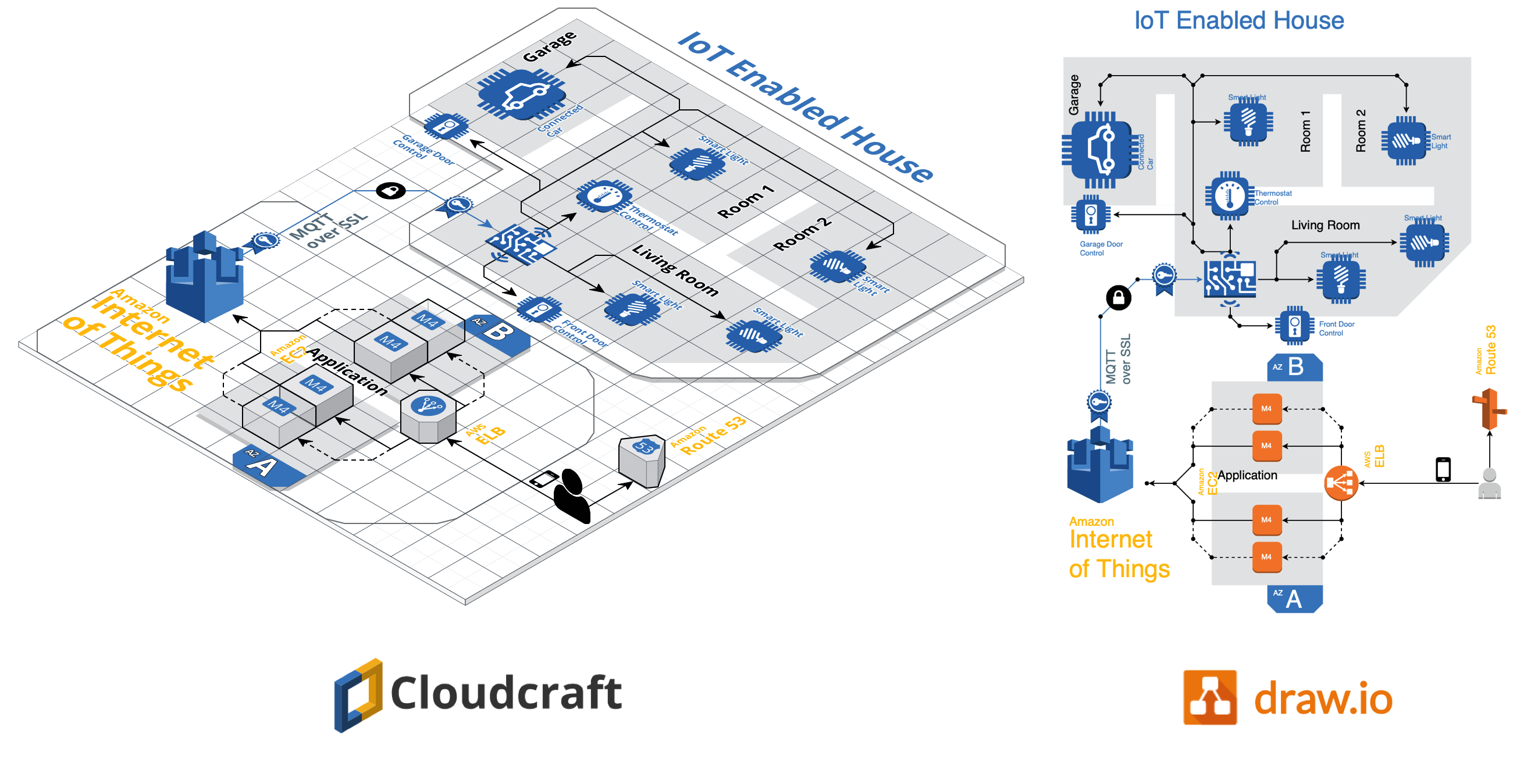
Examples of Cloudcraft infrastructure diagrams exported to draw.io

Get started with your AWS infrastructure using the Amazon Architecture Center's training section and the reference architectures.

AWS architecture documentation also needs to be static

To document how your AWS infrastructure changes over time, you need snapshots - diagrams before and after you make changes. You can't use a live system to document what happened in the past. This is especially important to comply with audit and security standards, and to show progress on your IT infrastructure projects.

Export the various stages of your AWS infrastructure's development into static diagrams. You can easily share these diagrams, open and edit them in draw.io, incorporate them into official documentation and reports, and store them in your revision control system to ensure compliance and painless audits.

Cloudcraft makes it easy to export to draw.io.

How to export from Cloudcraft

Note: Please allow pop-ups in your browser.

In your Cloudcraft account, in the top right of the drawing area, click Export > 2D export to draw.io
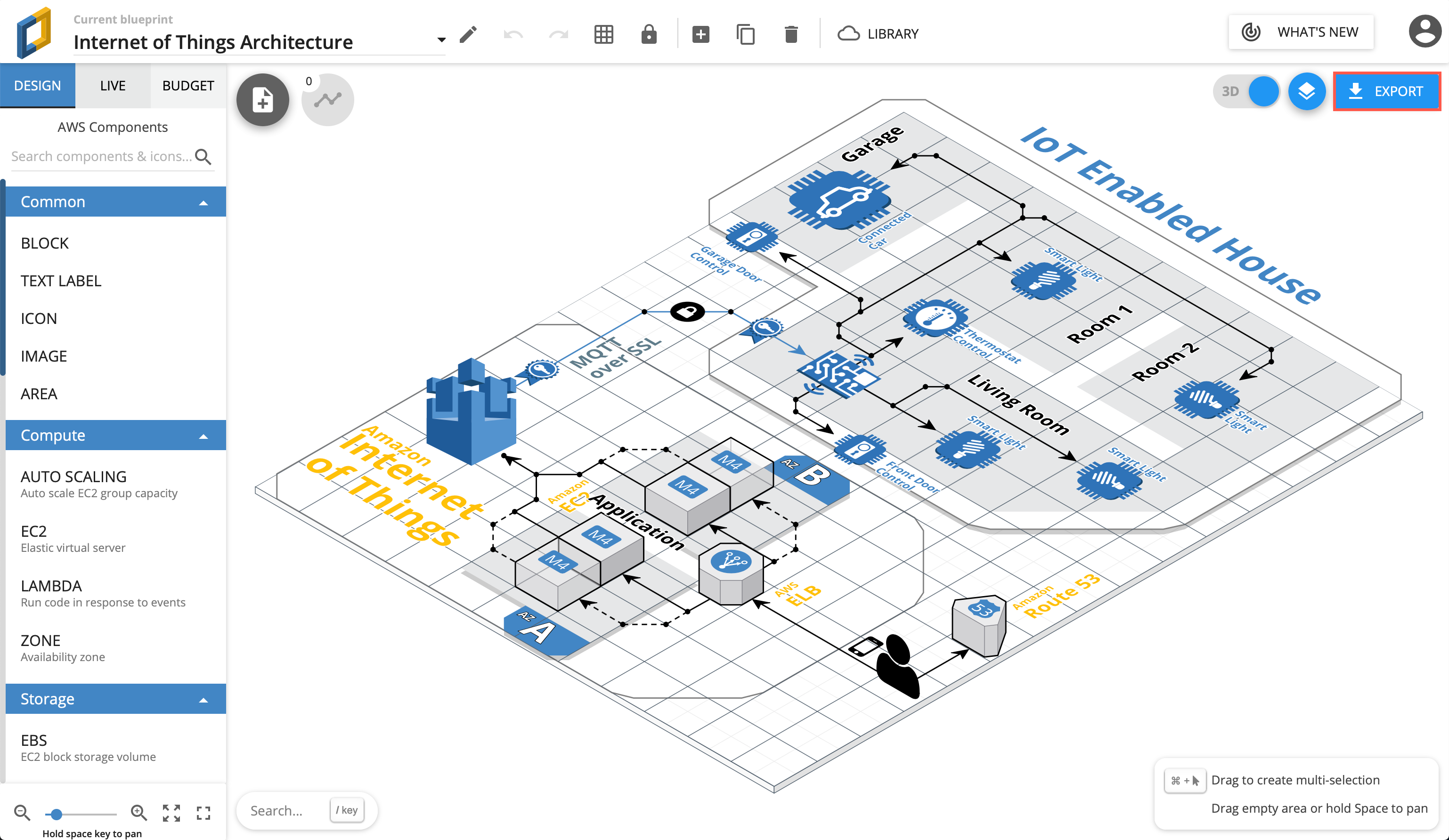
Export AWS infrastructure from Cloudcraft

The draw.io version of your AWS architecture will open in a new tab in your browser. You can now save this diagram file to your version control system, cloud storage platform, or whichever location you have chosen to maintain a record of your infrastructure.
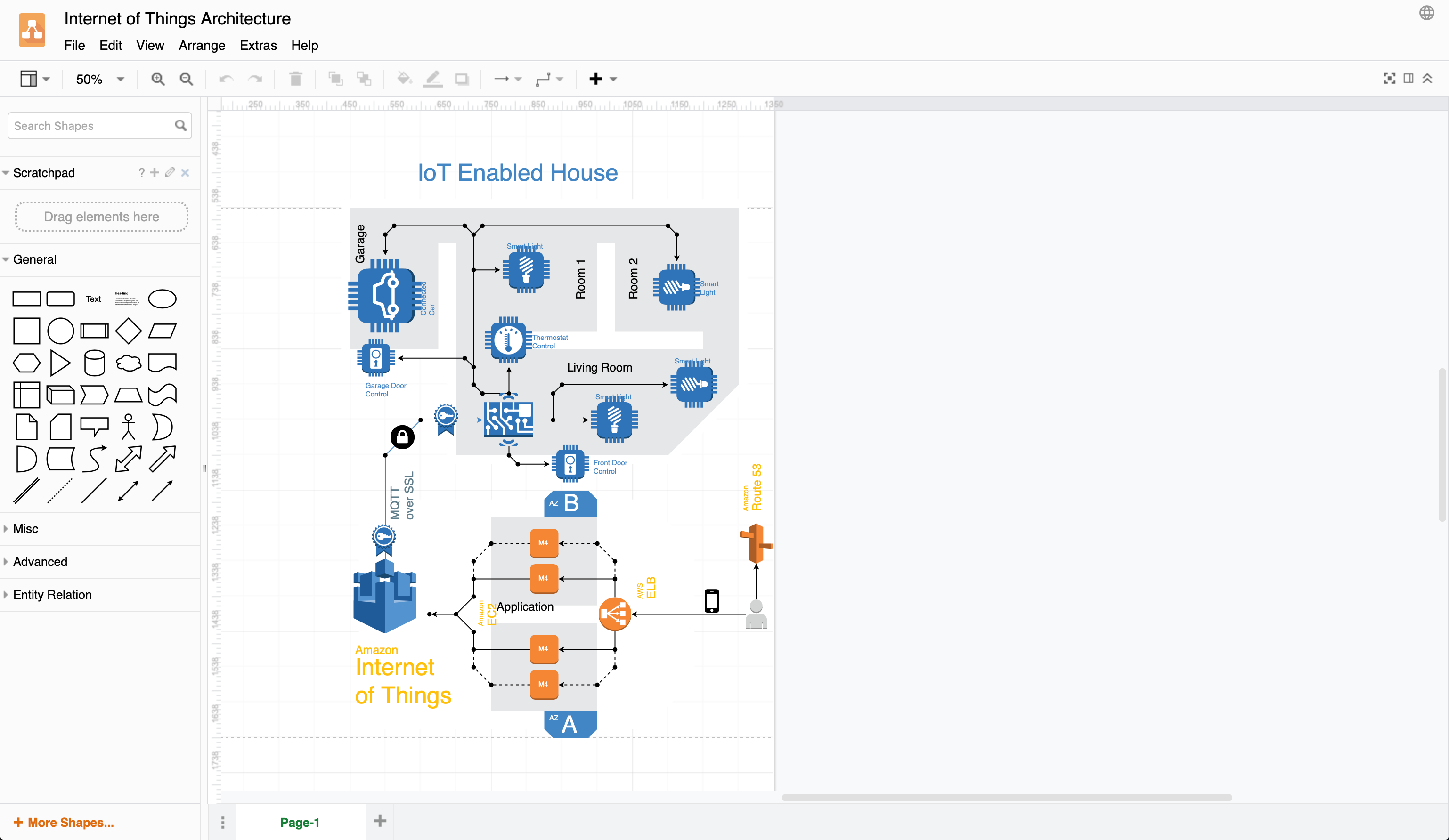
Exported 2D IoT AWS infrastructure from Cloudcraft into draw.io

When exporting to draw.io, Cloudcraft may not use the most recent AWS shapes in your diagram, but it's easy to update your diagram to the newest AWS shapes yourself.

Editing AWS diagrams in draw.io

First, enable the AWS libraries. Click More Shapes at the bottom of the left panel, enable one or more AWS libraries under Networking, then click Apply.
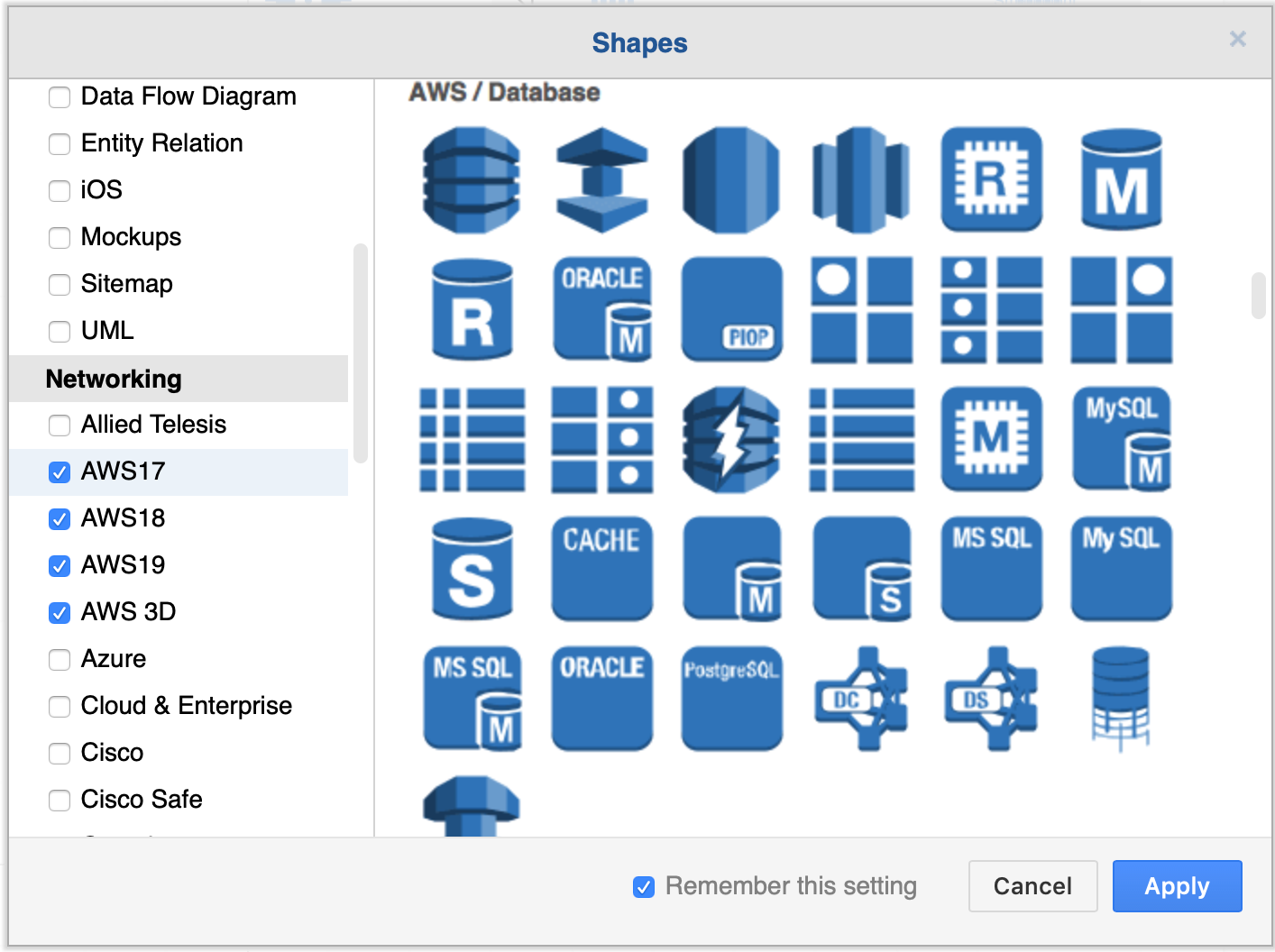
Enable the AWS libraries

There are many AWS shapes available to visualise your AWS infrastructure. When you enable just one of the shape libraries above, you'll see a number of sub-categories of shapes appear in the left panel.
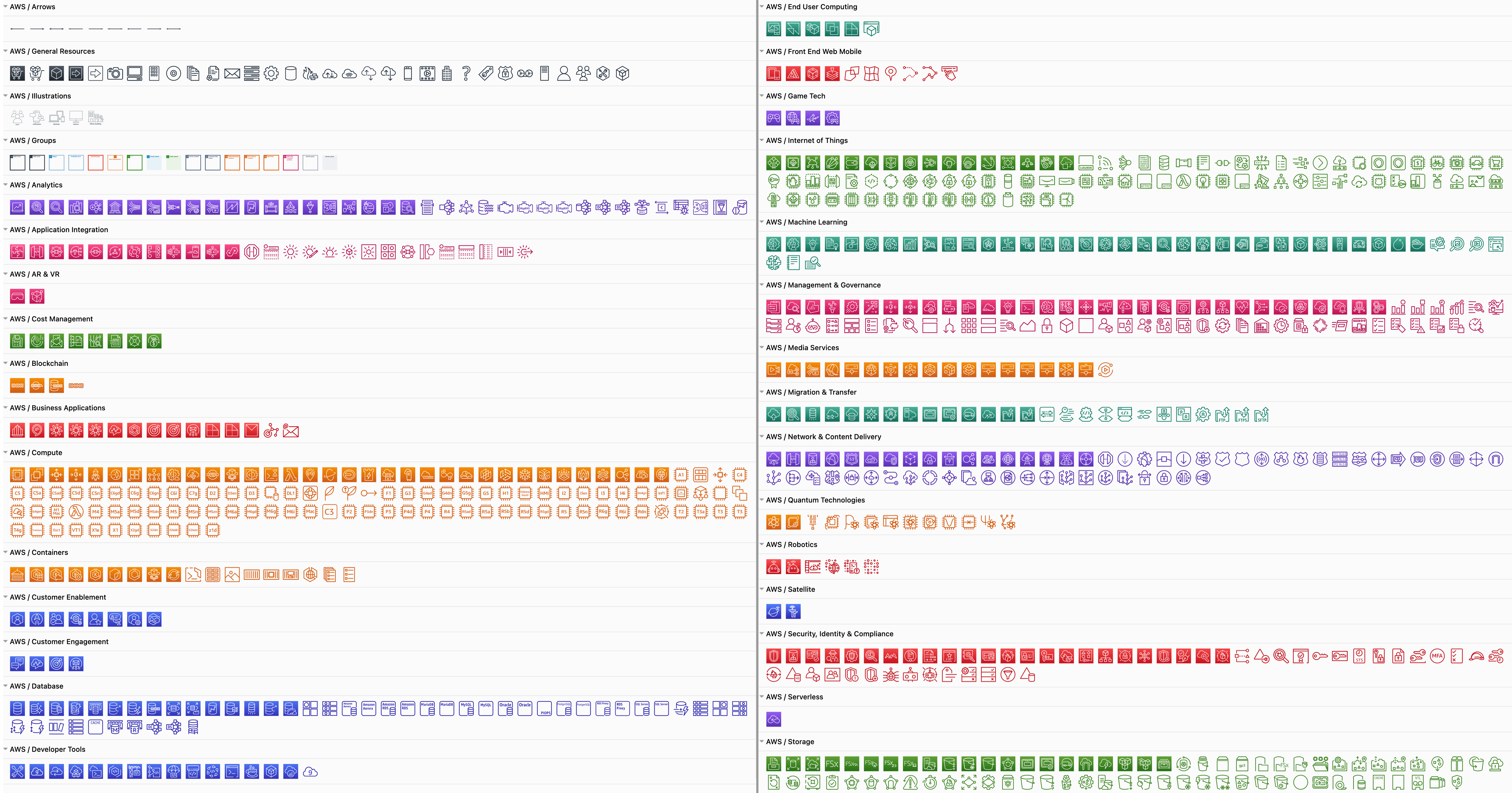
Some of the AWS shapes available in draw.io

Replace shapes

Drag a replacement shape from a shape library and hover over a shape in the diagram until you see the black replace shape arrow appear. Then release. The shape you just dropped will replace the old shape on the diagram. You may need to tweak the size and style afterwards. Once you have replaced all the shapes, change the sizes and styles to multiple shapes at once to save time.
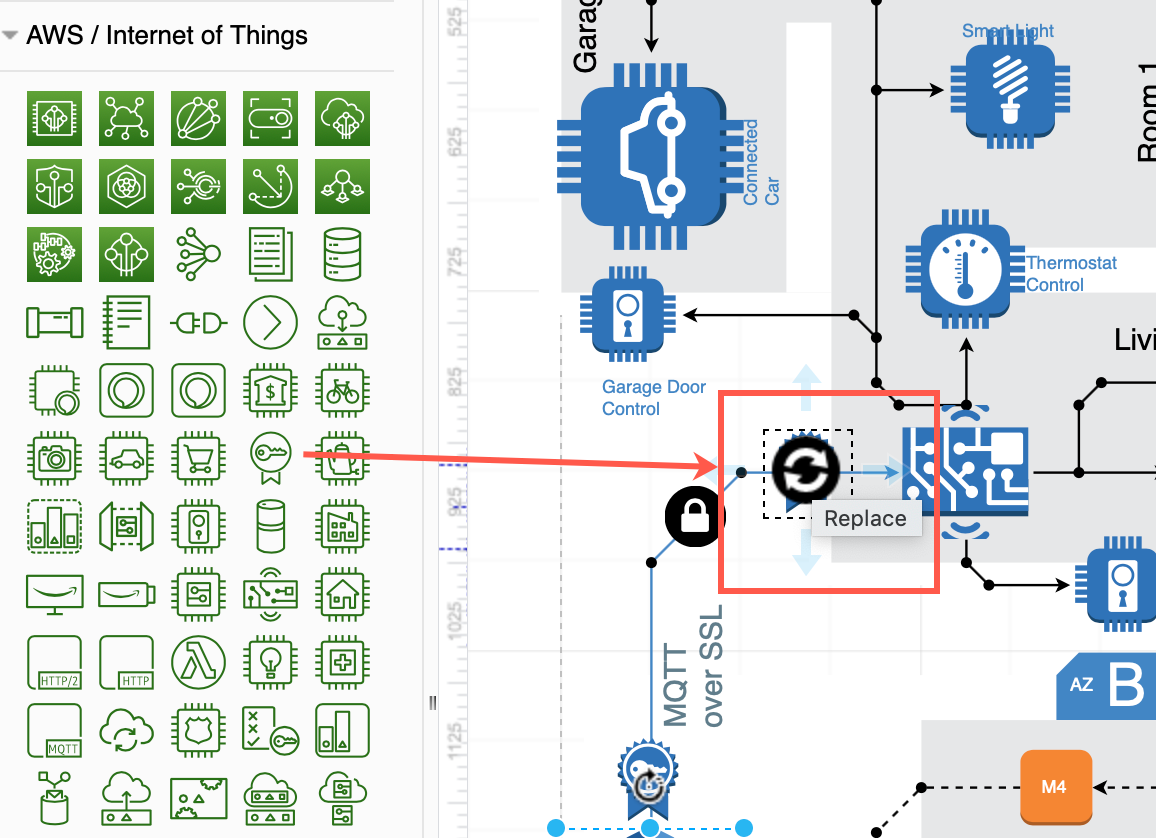
Drag a shape from the library and hover over a shape until you see the black replace arrow

Copy styles

Select a shape that has the style you want to copy. In the Style tab of the format panel on the right, click Copy Style. Select one or more shapes that you want to update, and click Paste Style.

Copy sizes

Select a shape that has the size you want to copy. In the Arrange tab of the format panel, click Copy Size. Select one or more shapes, then click Paste Size.

In this example, all of the older AWS shapes and 3D shapes have been updated to use a more recent AWS shape library.
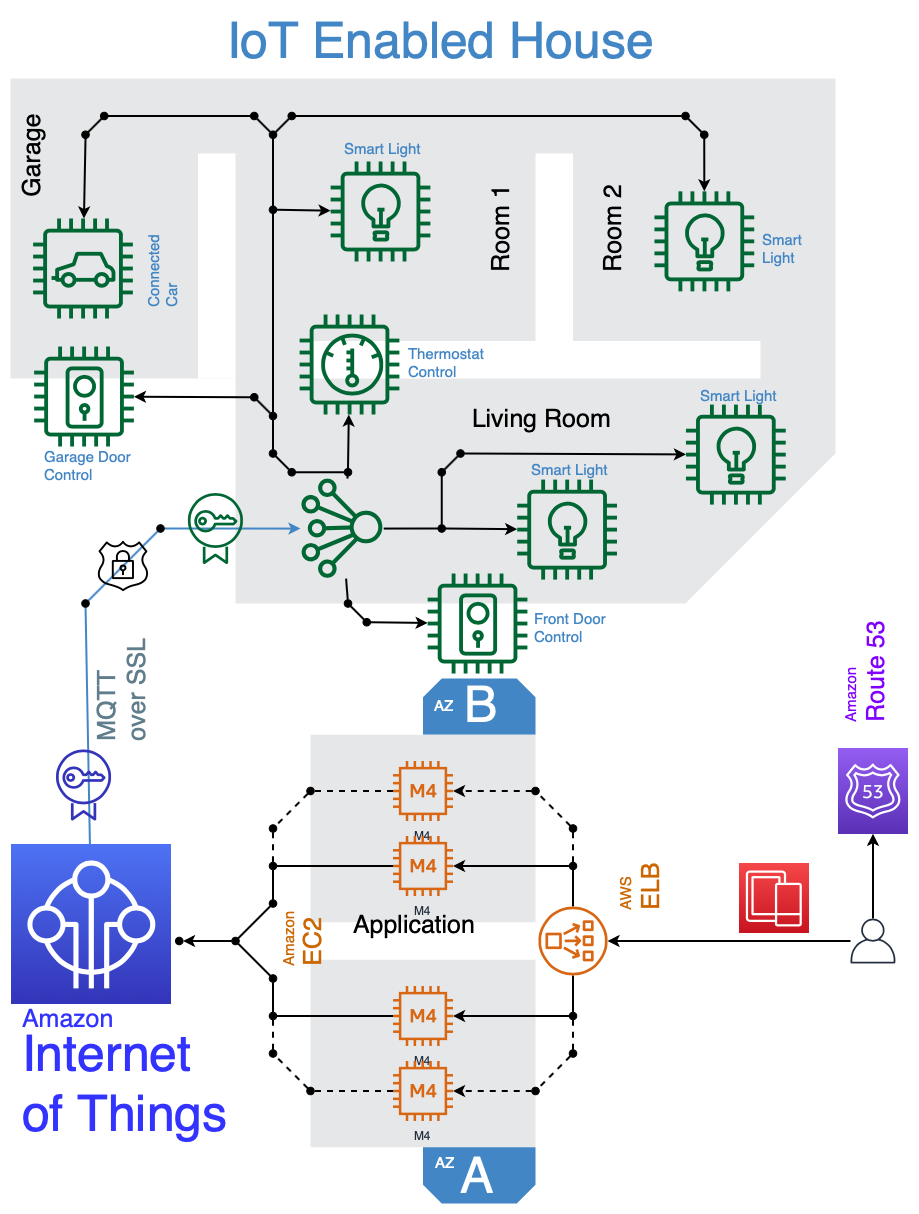
IOT example using 2019 AWS shapes
Open this AWS diagram in the free draw.io diagram viewer

Using the diagrams.net Chrome app

· 3 min read
draw.io
draw.io Team

A Chrome app is a browser-based app that looks like a normal desktop app. The draw.io Chrome app runs on Chromebooks using ChromeOS, as well as on the following operating systems: Android, Windows, MacOS, iOS, Linux - in fact, anywhere the Chrome browser can run.

Chrome apps run in a simplified version of the Chrome browser. It is usually used as a wrapper to serve web apps. If you are not using ChromeOS, you will need to be connected to the internet in order for Chrome apps to work. Chrome apps work in ChromeOS even if you are offline.

Install the draw.io Chrome app

Regardless of which platform you are using, you must install Google Chrome before you can install any Chrome apps.

Before you install the app, download and install Chrome from Google's website

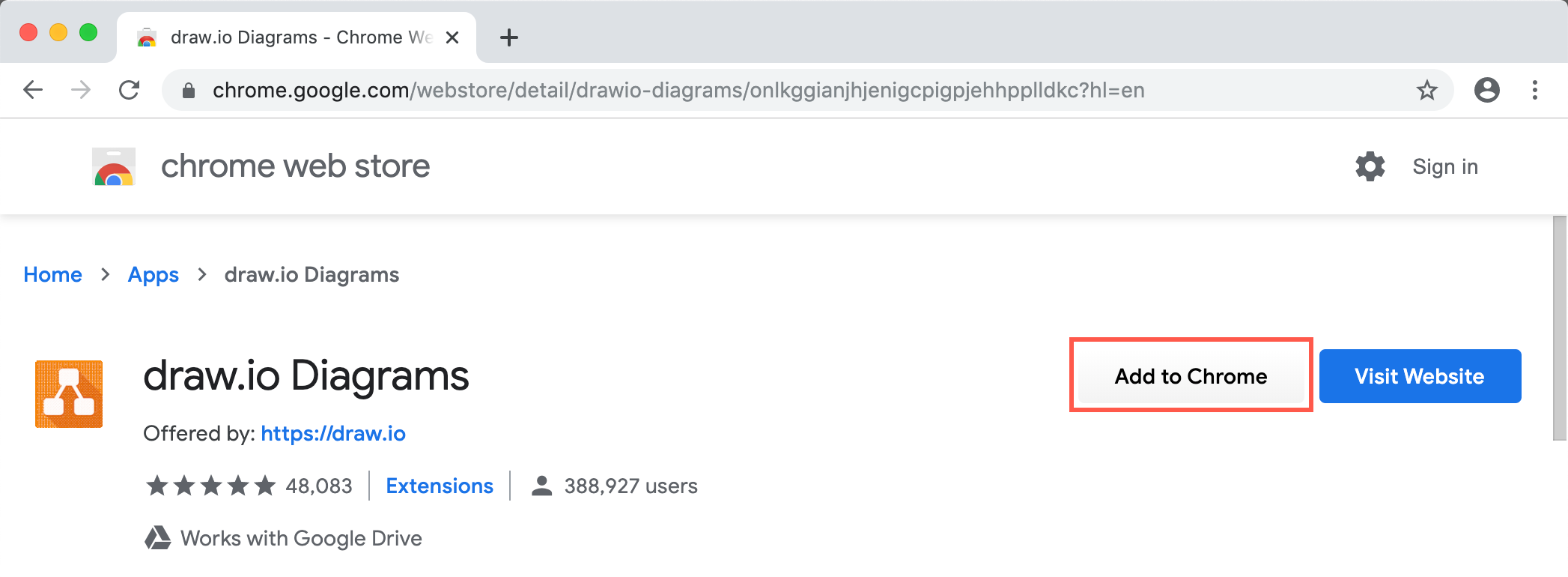
  1. Go to the draw.io app on the Chrome Web store and click on Add to Chrome.
    The draw.io Chrome app on the Chrome web store
  2. Click on Add app in the small dialog that pops up. The draw.io icon is added to your Chrome Apps page.
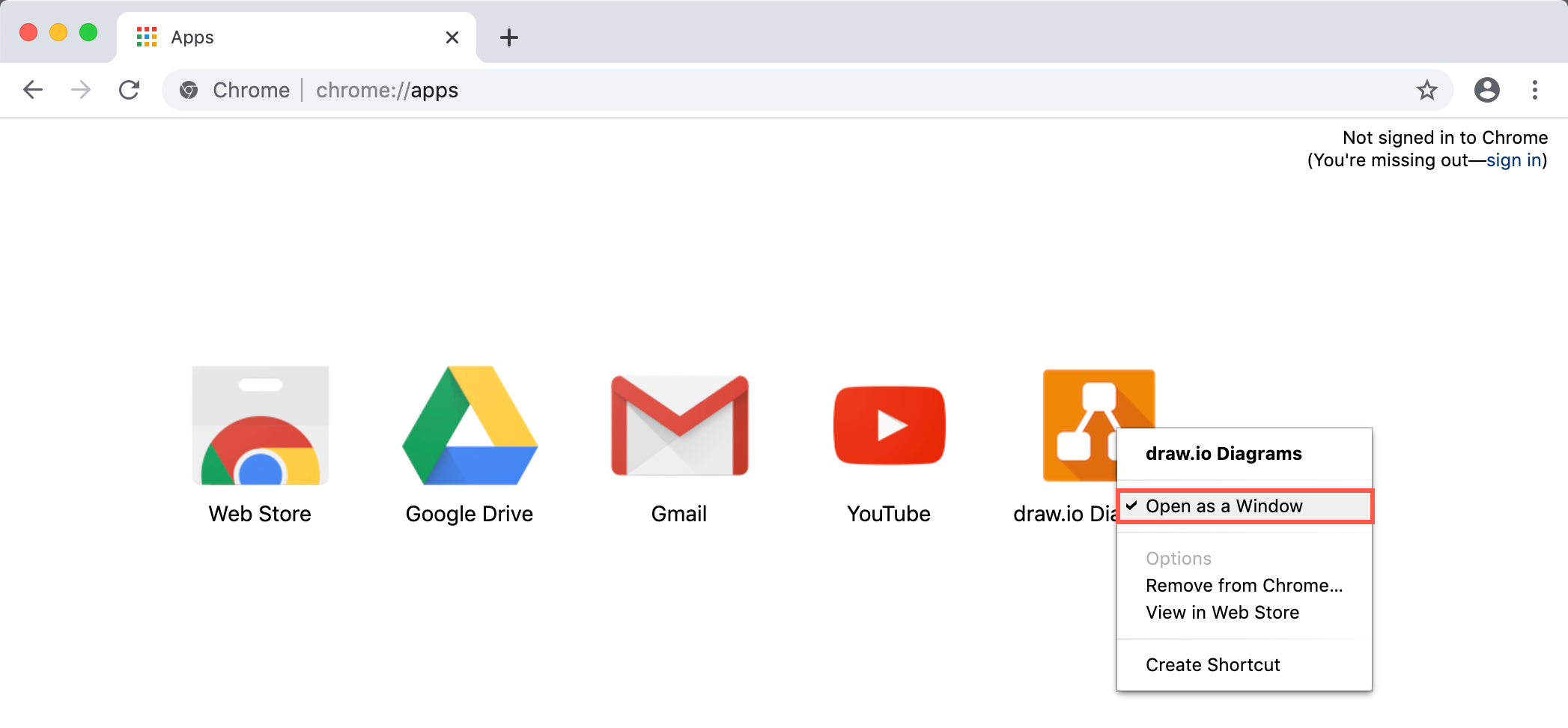
  3. If you want to see the draw.io Chrome app like a native program (without a search bar at the top), right-click on the draw.io app on the Chrome Apps page and enable Open as a window in the context menu.
    Make the draw.io Chrome app run without the Chrome search field

Now, whenever you want to diagram, go to your Chrome Apps page, then double-click on the draw.io app in Chrome to open the diagram editor.

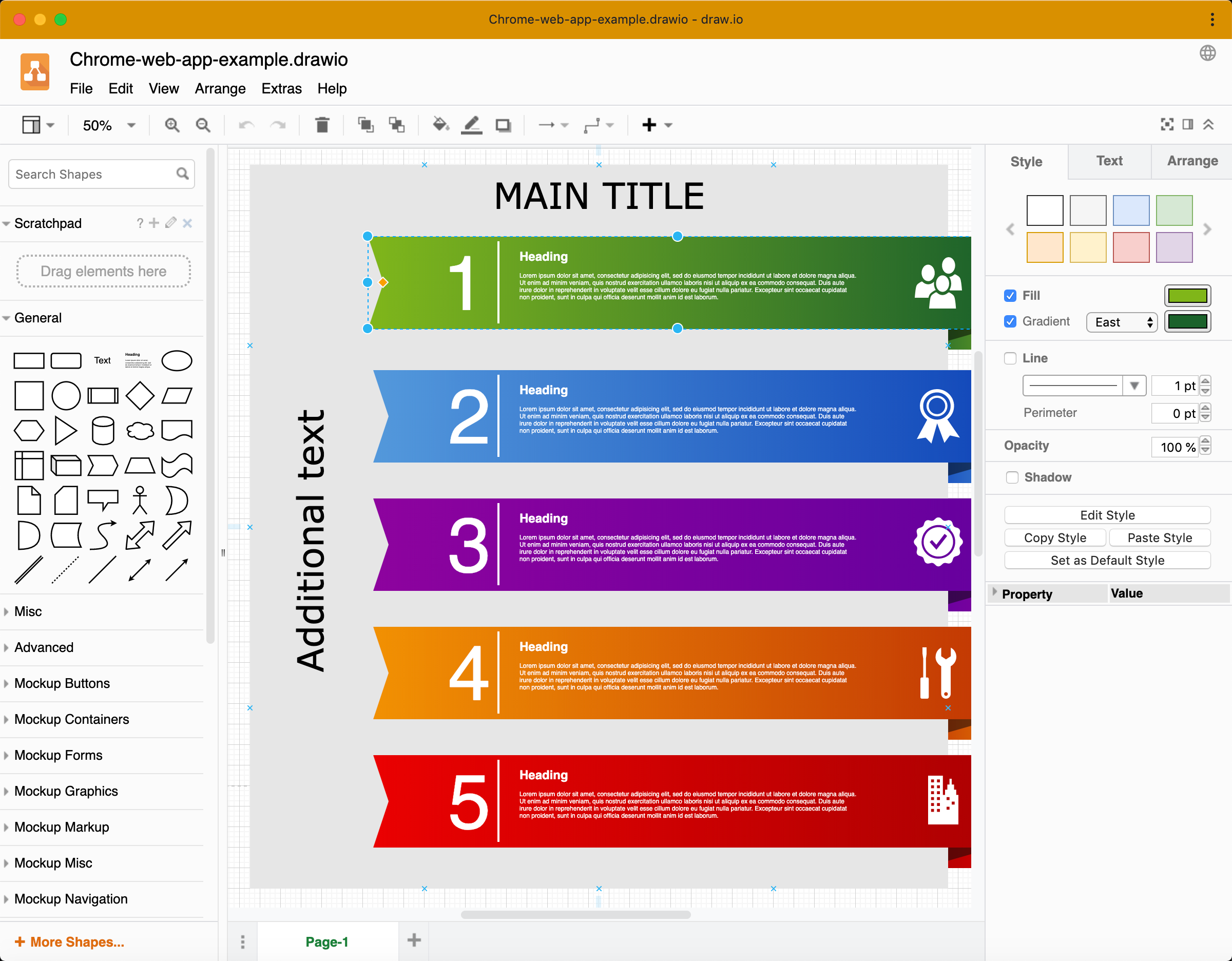
An infographic template diagram in the draw.io Chrome app

Using the draw.io Chrome app

Using the draw.io Chrome app feels like using our diagram editor in your normal browser. You have access to the shape libraries, templates, scratchpad, and all of the other editing tools, just like you would with draw.io's free online editor.

There are a few features that you won't have access to if you are using the draw.io Chrome app offline.

  • Load, save or export diagrams to cloud storage platforms, or autosave your diagram.
  • Convert diagrams to PDF and image file formats.
  • Create a new diagram from a template or insert a template diagram.
  • Search for and use the online clipart shapes.
  • Use fonts that are hosted online (download these fonts and install them in your system).
  • Use the online help.

Use draw.io offline on another platform

If you are using ChromeOS on a Chromebook, you can use your Chrome apps offline.

On other platforms like Windows, Linux, MacOS, etc., when you use the draw.io Chrome app, you must have an active internet connection. If you want to be able to diagram in draw.io offline in an operating system other than ChromeOS, please install the draw.io desktop app instead.

Download and install the draw.io desktop app

Learn more about using draw.io offline